
Monitor Position, The Real Fix for Tech Neck at Your Desk
A 15° forward head tilt puts 27 lbs on your cervical spine. No amount of stretching offsets 8 hours of that load. The fix starts with your screen.
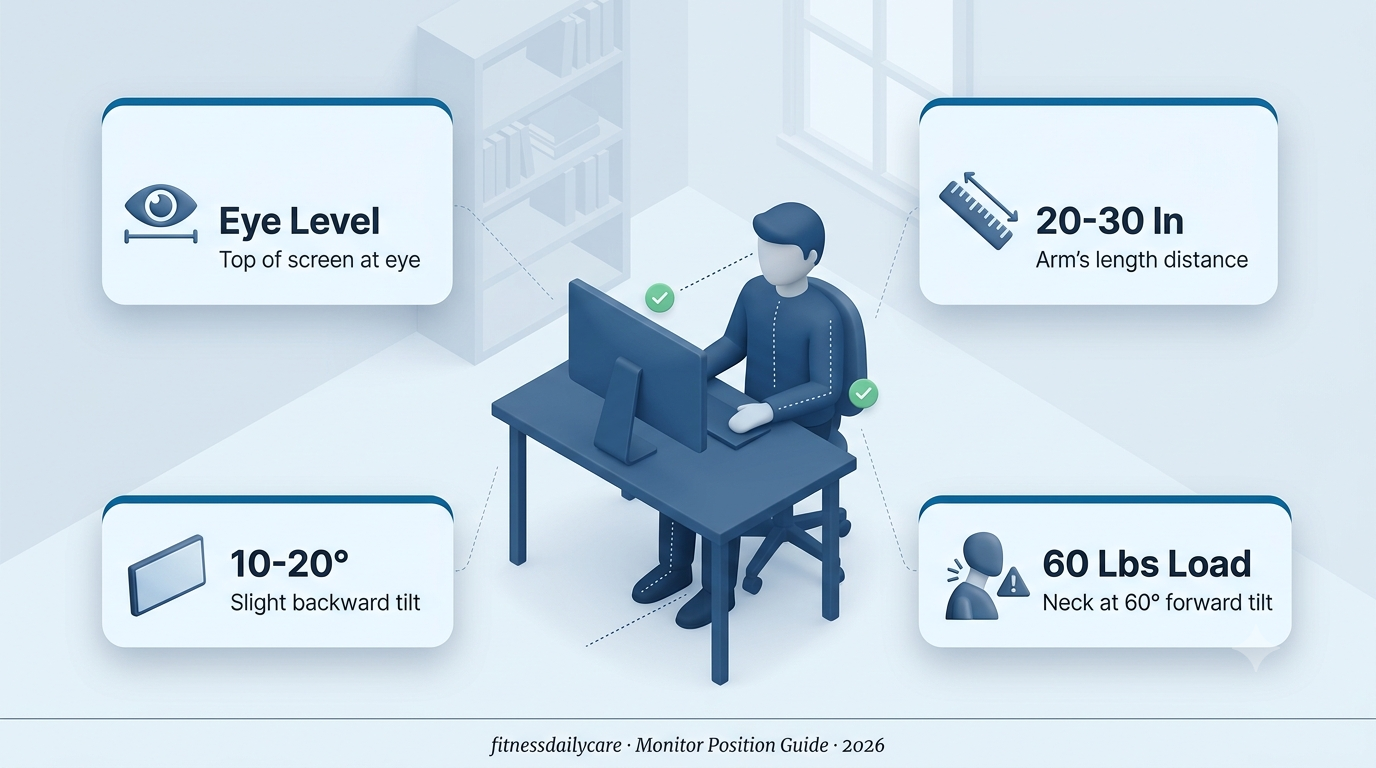
Monitor Position is the desk-setup fix most office workers get wrong for years, then blame their pain on “aging” or “bad posture.” The truth is closer to physics than personality. Your head weighs 10-12 pounds when balanced neutrally on top of your spine. Tilt it forward 15° to look down at a low monitor and, according to the widely-cited biomechanical analysis by Dr. Kenneth Hansraj, the effective load on your cervical spine jumps to about 27 pounds. Tilt to 30° and it’s 40. At 60° — roughly the angle you hold your neck when looking at a phone in your lap — the load climbs to around 60 pounds.
Now do that for eight hours a day, five days a week, for years. The math explains why 45-60% of office workers report chronic neck pain in any given year. It also explains why no amount of stretching, foam rolling, or chin-tuck exercises fully solves the problem for most people. Those tools are treating a symptom that gets re-created every single morning at 9 AM when the same person sits down in front of the same badly-positioned screen.
The unfair-but-true truth is that Monitor Position is one of the highest-return interventions available for office-based neck pain. Setting your screen so the top is at eye level, at arm’s length, tilted back slightly, changes the load on your cervical spine by orders of magnitude — for zero ongoing effort. You do it once, verify it whenever you change desks, and reap the benefit permanently. No time cost, no discipline required, no exercise routine to remember.
That’s the frustrating part. The evidence has been sitting in ergonomics research for decades — Rempel, Szeto, and dozens of other researchers have documented the biomechanics repeatedly. OSHA published guidelines. ISO created a standard (ISO 11226:2000). And yet, most home offices set up during the remote-work boom of 2020-2023 got the screen wrong: too low, too close, too flat. Millions of people have been slowly loading their necks with unnecessary weight ever since.
This guide covers the five Monitor Position rules that actually matter, the biomechanics behind each, and the setup mistakes that undo the benefit. It’ll take about seven minutes to read. Fixing your desk after reading will take about 90 seconds.
Load multiplies with tilt angle
Head weight goes from 10-12 lbs neutral to 60 lbs at 60° forward tilt. This isn’t opinion — it’s biomechanics documented in the 2014 Hansraj analysis and confirmed in subsequent EMG studies.
Stretching treats symptoms, not cause
Chin tucks and neck stretches provide brief relief but can’t offset 8 hours of sustained cervical loading. The load recurs the next morning if the Monitor Position hasn’t changed.
Chair drives everything above it
Chair height determines elbow height. Elbow height determines desk height. Desk height determines Monitor Position. Fix the setup in that cascade — start from the ground up.
Standing desks alone don’t solve it
Raising the desk without raising the monitor makes tech neck worse. Standing setup requires 8-12 additional inches of monitor height. Missed step ruins the investment.
The pain comes back tomorrow
if the screen doesn’t change today.
Monitor Position: 5 Rules for a Tech-Neck-Proof Desk
Top of Screen at Eye Level, Exactly
The most-cited ergonomics rule for Monitor Position is also the one most people get wrong in home offices: the top of the monitor should sit at or just below your seated eye level. Not the center. Not the top bezel. The actual pixel-active top of the display. When this is right, your primary gaze falls into a natural 0° to -15° downward zone — the exact range your eyes rest in without forcing neck flexion.
Most people set laptops or lower-end monitors 4-6 inches too low without realizing it. The natural response is to tilt the head forward to see the screen better, which loads the cervical spine, which becomes chronic within weeks. The fix is a monitor arm, a stack of books, or a dedicated laptop riser — any of these solves the problem in about 60 seconds.
Note the exception for standing desks. When you go from seated to standing, your thoracic spine is more vertical, which raises your natural line of sight. A monitor that was correctly positioned for sitting will now be too low for standing. Sit-stand users need either a monitor arm that adjusts easily or a standing setup with the screen raised 8-12 inches higher than the seated position.
Arm’s Length: 20-30 Inches From Your Eyes
The second Monitor Position rule that dramatically affects neck strain: distance from your eyes. The standard recommendation of 20-30 inches (roughly an arm’s length) exists because it matches how the human visual system prefers to focus for extended periods. Too close forces the eyes into overconvergence, which the neck compensates for by leaning back or forward. Too far forces you to lean in to read text, which triggers the same forward-head cascade.
The screen size complication: larger monitors need to sit further away, not closer. A 27-inch display at 20 inches distance forces constant eye movement to reach the edges. A 34-inch ultrawide at the same distance is worse. Scale distance to screen size — larger screens should be pushed 30 inches back or further, with text size adjusted up to compensate.
The laptop screen issue is worth calling out separately. Laptop keyboards and screens are attached, which means one of them has to be wrong ergonomically. Using an external keyboard with a laptop propped up on a stand solves this by decoupling the two. For desk-based work, a laptop-on-desk configuration will always compromise either wrist position or Monitor Position — you can’t have both correct simultaneously.
Backward Tilt of 10-20 Degrees
Almost no one adjusts monitor tilt after the first day of setup, and almost everyone has it wrong. A perfectly vertical screen — 90° to the desk — forces you to look at the bottom of the display at a slight upward angle and the top at a slight downward angle. The natural downward arc of human vision doesn’t match this, and the mismatch shows up as eye strain and micro-adjustments in neck position throughout the day.
The correct tilt is 10-20 degrees backward — the top of the monitor slightly further away from you than the bottom. This matches the natural downward gaze pattern and allows your eyes to scan the screen from top to bottom without any neck compensation. ISO 11226:2000 documents this as the ergonomic standard, and every major monitor arm ships with tilt adjustment specifically for this reason.
The visual test is easy: sit in your normal working position, close your eyes, then open them and look at the screen without moving your head. Your eyes should land on the top third of the screen, and the entire display should feel comfortably readable without the top and bottom feeling like they’re at different visual planes. If either half feels distorted, adjust the tilt in 5° increments until the whole screen feels flat to your gaze.
Chair First, Then Everything Above It
The single biggest mistake in Monitor Position adjustment is starting with the monitor. Ergonomists have a saying: your chair determines everything. Chair height determines elbow height. Elbow height determines desk height. Desk height determines keyboard position. And only after all three are correct can Monitor Position be adjusted meaningfully. Start from the top and you’ll end up with a screen at the right height but a body in the wrong posture to use it.
The correct cascade: (1) Chair set so your feet are flat on the floor with hips slightly higher than knees. (2) Chair height fine-tuned so elbows rest at 90° when hands are on the keyboard. (3) Desk height adjusted so keyboard sits at that elbow level. (4) Monitor raised or lowered so the top edge matches eye level from that seated position. Do all four steps and Monitor Position falls into place automatically.
The reason this order matters: any compensation you make in one component gets passed to the next. A chair that’s too low forces you to reach up for the keyboard, which raises your shoulders, which changes your seated eye height, which throws off the monitor. Fixing only the monitor while the chair is wrong just moves the pain from your neck to your wrists or shoulders. The whole chain has to be right, in order.
The Cornell 20-8-2 Movement Rule
The final rule is what turns good Monitor Position into a genuine tech-neck fix: micro-movement throughout the day. Even perfect ergonomic setup can’t fully protect against the effects of sitting still for 8 hours. Static loading — holding the same position for extended periods — is what ISO 11226:2000 specifically warns against, because muscle and disc tissues need repeated cycles of load and unload to stay healthy.
Cornell University’s Human Factors and Ergonomics Research Group popularized what’s now called the 20-8-2 rule: 20 minutes seated, 8 minutes standing, 2 minutes moving around. Repeat this cycle throughout the day. This isn’t just a step-counting exercise — it’s the specific pattern that gives tissue enough load variation to stay resilient. Alternating sit-stand every 30 minutes with brief movement breaks is the practical version most sit-stand desk owners can actually maintain.
The other movement pattern that helps: micro-adjustments to Monitor Position throughout the day. Slightly tilt the screen up, then back to neutral 20 minutes later. Push the monitor slightly further away after lunch. Change chair angle occasionally. This constant small variation prevents any single tissue from bearing the same load pattern for the eight-hour block. Modern monitor arms make this trivially easy — the resistance can be adjusted so one hand can nudge the screen anytime.
⚠ The Standing Desk Trap
Standing desks are one of the most-oversold ergonomic solutions of the last decade. The pitch is compelling — reduce back pain, burn more calories, improve posture — and there’s some truth to it. But standing desks come with a specific failure mode: users raise the desk to standing height without also raising the monitor. The result is looking sharply downward at a screen that’s now 20 inches below eye level, which multiplies cervical load massively.
If you use a standing desk, the monitor must rise with it. This means either a dedicated monitor arm that adjusts easily as you switch positions, or two separate setups (one for sitting, one for standing) that you actually use rather than skip. Standing at a badly-positioned monitor is worse for your neck than sitting at a slightly-badly-positioned one, because standing amplifies every forward head tilt into your entire spine below it.
Monitor Position: The 90-Second Desk Audit
▎ The 5-Step Monitor Position Audit
- Sit in your chair as you normally would. Don’t correct your posture for the test. Feet flat, hips slightly higher than knees. Elbows should hover at 90° when hands rest on the keyboard — if not, adjust chair height first.
- Close your eyes for 3 seconds, then open them. Your gaze should land on the top third of the screen. Below it means the monitor is too low. Above it means the monitor is too high. Adjust accordingly.
- Extend one arm straight toward the screen. Your fingertips should just touch the display. Closer than that = pull the monitor back. Further than that = pull it closer. Simple as that.
- Look at the top and bottom of the screen without moving your head. Both edges should feel comfortably in view. If the bottom feels too close or the top feels distant, adjust tilt back by 5-10 degrees.
- Set a timer for 25 minutes. When it goes off, stand up, move around, and adjust Monitor Position slightly. Repeat throughout the day. Static positions kill even perfect setups.
Fix the desk first.
Then decide if you still need the stretches.
4 Desk Setup Mistakes That Cause Chronic Neck Pain
Laptop on desk without external keyboard
Either the screen is too low or the keyboard is too high. There is no configuration where both are correct simultaneously. Add an external keyboard and mouse, then prop the laptop up on a stand.
Two monitors placed too far apart
Sustained head rotation to see side monitors is worse than a single forward-facing screen. Keep the primary monitor centered and use the secondary as reference, or angle both slightly inward toward you.
Monitor at perfect vertical (no tilt)
A screen at 90° looks natural but forces micro-corrections in neck position all day. The 10-20° backward tilt matches the natural eye gaze arc and prevents the static-load problem.
Bifocal glasses at a normal Monitor Position
Bifocal wearers tilt their heads back to see through the lower lens portion. This creates its own cervical strain. Consider dedicated computer glasses or specific “computer bifocals” that reverse the arrangement.
Monitor Position · The Verdict
Top of screen at eye level — not center, not bezel. The active display top matches your natural forward gaze. Under 15° downward zone.
20-30 inches from your eyes — arm’s length. Larger monitors need more distance, not less. Increase text size before moving closer.
Tilt back 10-20 degrees — matches natural downward gaze. Never leave the monitor perfectly vertical. Micro-adjust throughout the day.
Fix the chair first — cascade goes chair → elbow → desk → Monitor Position. Never adjust the monitor in isolation.
Cornell 20-8-2 rule — 20 min sit, 8 min stand, 2 min move. Static loading defeats even perfect ergonomic setup.